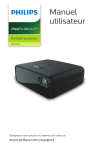
Manuel
utilisateur
PicoPix Micro 2TV
Portable projector
PPX360
Enregistrez votre produit et obtenez de l’aide sur
www.philips.com/support
Table des matières
Introduction�������������������������������������������������3
8 Autres fonctions��������������������������������� 15
Cher client�����������������������������������������������������������������������3
À propos du manuel utilisateur�������������������������������3
Écouter via des haut-parleurs externes ou des
écouteurs�����������������������������������������������������������������������15
Contenu de la boîte�����������������������������������������������������3
Recharger un dispositif USB�����������������������������������16
Service clientèle������������������������������������������������������������3
Utiliser la fonction HDMI ARC��������������������������������16
1
Informations générales sur la
sécurité�������������������������������������������������� 4
9 Modification des paramètres����������16
Installation de l’appareil������������������������������������������� 4
Réglages du système de projection��������������������18
Réparations��������������������������������������������������������������������5
10 Entretien���������������������������������������������20
Alimentation électrique���������������������������������������������5
Nettoyage���������������������������������������������������������������������20
2 Aperçu��������������������������������������������������� 6
Mise à jour du micrologiciel�����������������������������������20
Vue arrière���������������������������������������������������������������������� 6
Dépannage������������������������������������������������������������������20
Vue de face�������������������������������������������������������������������� 6
11 Annexe������������������������������������������������� 23
Vue latérale�������������������������������������������������������������������� 6
Caractéristiques techniques���������������������������������� 23
Télécommande�������������������������������������������������������������7
Déclarations CE��������������������������������������������������������� 24
3 Configuration initiale�������������������������� 8
Déclarations FCC������������������������������������������������������� 24
Installation du projecteur����������������������������������������� 8
Conformité à la régulation au Canada������������24
Connexion de l’alimentation électrique�������������� 8
Autres avis�������������������������������������������������������������������� 25
Préparation de la télécommande������������������������� 9
Mise en marche������������������������������������������������������������ 9
Première configuration���������������������������������������������� 9
4 Fonctionnement���������������������������������10
Réglage de l’image����������������������������������������������������10
Utilisation du trépied��������������������������������������������������11
Installation���������������������������������������������������������������������11
5 Utilisation de l’écran d’accueil�������� 13
Utilisation d’Android TV�������������������������������������������� 13
Réglages d’Android TV �������������������������������������������� 13
Utilisation d’un clavier/souris filaire�������������������� 13
Utilisation d’un clavier, d’une souris ou d’une
manette de jeu������������������������������������������������������������ 13
6 Diffusion avec Chromecast �������������14
Avis����������������������������������������������������������������������������������14
7
Branchement à des appareils de
lecture���������������������������������������������������14
Branchement à des appareils à sortie HDMI���14
Réglages système Android TV�������������������������������16
Introduction
Contenu de la boîte
Cher client
b Projecteur PicoPix Micro 2
Nous vous remercions d’avoir choisi ce
projecteur.
d Sac de transport
a Guide de démarrage rapide
TV
Nous espérons que vous apprécierez ce produit
et les nombreuses fonctions qu’il offre !
À propos du manuel
utilisateur
Le guide de démarrage rapide fourni avec
votre appareil vous permet de mettre votre
appareil en service rapidement et facilement.
Vous trouverez des descriptions détaillées aux
chapitres suivants de ce manuel utilisateur.
Lisez attentivement le présent manuel
utilisateur. Veillez surtout aux consignes
de sécurité afin d’assurer un parfait
fonctionnement de votre appareil (voir
Informations générales sur la sécurité,
page 4). Le fabricant n’assume aucune
responsabilité en cas de non-respect de ces
consignes.
(PPX360)
c Trépied
e 3 adaptateurs de fiches d’alimentation
(EU, UK et US)
f 2 piles AAA
g 1 adaptateur secteur
h Télécommande
b
a
Quick Start
Guide
d
c
h
OK
e
g
f
Symboles utilisés
Avis
Service clientèle
Dépannage
Ce symbole désigne les astuces qui
vous aident à utiliser votre appareil de
manière plus efficace et plus simple.
DANGER !
Danger pour les personnes !
Ce symbole met en garde contre
le danger aux personnes. Une
manipulation inadéquate peut
entraîner des blessures corporelles ou
des dommages.
ATTENTION !
Dommage de l’appareil ou perte de
données !
Vous trouverez le numéro de l’assistance
téléphonique dans la carte de garantie ou sur
Internet :
Web : www.philips.com/support
Courriel : philips.projector.eu@screeneo.com
Numéro de téléphone international :
+41 215 391 665
Veuillez consulter votre opérateur téléphonique
pour le coût des appels internationaux.
Accédez à la version électronique du manuel
d’utilisation à l’adresse :
https://support.philipsprojection.com
Accédez au forum de la communauté à
l’adresse :
https://community.philipsprojection.com
Ce symbole met en garde contre des
dommages sur l’appareil ainsi que sur
des pertes de données possibles. Des
dommages peuvent résulter d’une
manipulation inadéquate.
Introduction3
1 Informations
générales sur la
sécurité
Respectez toutes les indications de prévention
et de sécurité prescrites. Ne procédez à aucun
réglage ou changement qui n’est pas décrit
dans le présent mode d’emploi. Une opération
incorrecte et une manipulation inadéquate
peuvent entraîner des blessures corporelles,
des dommages matériels ou des pertes de
données.
Installation de l’appareil
L’appareil est exclusivement destiné à un
usage à l’intérieur. L’appareil doit reposer sur
une surface stable et plane. Posez tous les
câbles de manière à ce que personne ne puisse
trébucher ni se blesser ou que l’appareil ne soit
pas endommagé.
Prenez toujours soin de l’appareil. Évitez de
toucher l’objectif. Ne posez jamais d’objets
lourds ou à extrémité tranchante sur l’appareil
ou le câble d’alimentation.
Si l’appareil est trop chaud ou que de la fumée
s’en échappe, éteignez-le immédiatement et
débranchez-le de l’alimentation. Faites vérifier
l’appareil par un centre de maintenance agréé.
Tenez l’appareil éloigné des flammes (p. ex. des
bougies).
L’appareil est équipé d’une batterie embarquée.
Ne le désassemblez pas et ne le modifiez pas.
La batterie embarquée doit être remplacée
exclusivement par un personnel qualifié.
N’essayez pas de remplacer vous-même
la batterie embarquée. Une manipulation
incorrecte ou l’utilisation d’une batterie d’un
type inapproprié peut causer des dommages
matériels ou des blessures corporelles.
DANGER !
Risque d’explosion en cas d’utilisation
d’un type de batterie inapproprié !
N’installez pas l’appareil dans des pièces
humides. Ne touchez jamais les fiches/prises
secteur avec les mains humides.
N’utilisez jamais le produit immédiatement
après l’avoir déplacé d’un endroit froid à
un endroit chaud. Si l’appareil est exposé
à une telle variation de température, de la
condensation peut se former sur les parties
internes essentielles.
L’appareil doit être suffisamment ventilé et ne
doit pas être recouvert. Ne déposez pas votre
appareil dans des armoires ou coffres fermés
lorsqu’il est en cours d’utilisation.
Protégez l’appareil contre le rayonnement
solaire direct, la chaleur, les grandes variations
de température et l’humidité. Ne placez pas
l’appareil à proximité d’un chauffage ou
d’une climatisation. Veillez aux indications
données concernant la température
dans les caractéristiques techniques (voir
Caractéristiques techniques, page 23).
Si un type de batterie inapproprié est
utilisé, des risques d’explosion sont
possibles.
N’exposez pas les batteries (bloc de piles ou
batteries intégrées) à une chaleur excessive
(p. ex. en plein soleil) ou à une flamme nue.
De la condensation peut se former à
l’intérieur de l’appareil et entraîner des
dysfonctionnements dans les conditions
suivantes :
•
lorsque cet appareil est directement
déplacé d’une pièce froide vers une
pièce chaude ;
• après le réchauffement d’une pièce
froide ;
• lorsque cet appareil est placé dans une
pièce humide.
Afin d’éviter toute condensation, nous vous
recommandons de suivre la procédure suivante :
1
Si l’appareil fonctionne pendant une période
prolongée, la surface chauffe. L’appareil passe
automatiquement en mode veille quand il
devient trop chaud.
Enfermez l’appareil dans un sac en
plastique avant de le transporter dans
une autre pièce pour qu’il s’adapte aux
conditions de la pièce.
2
Aucun liquide ne doit entrer dans l’appareil.
Éteignez l’appareil et débranchez-le du secteur
si des liquides ou des corps étrangers y ont
pénétré. Faites vérifier l’appareil par un centre
de maintenance agréé.
Attendez 1 à 2 heures avant de sortir
l’appareil du sac.
Évitez d’utiliser l’appareil dans un
environnement poussiéreux. Les particules de
poussière et d’autres corps étrangers peuvent
endommager l’appareil.
4
Philips · PicoPix Micro 2TV
N’exposez pas l’appareil à de fortes vibrations.
Cela pourrait endommager les composants
internes.
Ne laissez pas les enfants manipuler l’appareil
sans surveillance. Ne laissez pas les emballages
à portée des enfants.
Pour votre propre sécurité, n’utilisez pas
l’appareil pendant des orages accompagnés
d’éclairs.
Éteignez votre appareil et débranchez-le de la
prise électrique avant de nettoyer la surface du
boîtier (voir Nettoyage, page 20). Utilisez
un chiffon doux et non pelucheux. N’utilisez
en aucun cas des produits de nettoyage
liquides, gazeux ou facilement inflammables
(vaporisateurs, produits abrasifs, vernis brillants,
alcool). Veillez à ce qu’aucune humidité ne
pénètre à l’intérieur de l’appareil.
DANGER !
Réparations
Risque d’irritation oculaire !
Ne réparez pas vous-même l’appareil. Une
maintenance non conforme peut occasionner
des dommages corporels et matériels. Faites
examiner votre appareil exclusivement par un
centre de maintenance agréé.
La carte de garantie contient les coordonnées
des centres de maintenance agréés.
Cet appareil est équipé d’une
LED (Light Emitting Diode) haute
performance qui émet une lumière très
claire. Ne regardez pas directement
l’objectif du projecteur au cours de
son fonctionnement. Vous risquez une
irritation ou des lésions oculaires.
N’enlevez pas la plaque signalétique de
votre appareil, car cela pourrait annuler toute
garantie.
Alimentation électrique
Utilisez uniquement un adaptateur certifié pour
cet appareil (voir Caractéristiques techniques,
page 23).
Vérifiez si la tension de réseau du bloc
d’alimentation correspond à la tension de
réseau du lieu d’installation. Cet appareil est
conforme au type de tension spécifié sur
l’appareil.
Le produit doit être installé près d’une prise
électrique facilement accessible.
La capacité de la batterie diminue avec le
temps. Si l’appareil ne fonctionne qu’avec
l’alimentation secteur, la batterie embarquée
est défectueuse. Contactez un centre de
réparation agréé pour remplacer la batterie
embarquée.
ATTENTION !
Utilisez toujours le bouton
éteindre le projecteur.
pour
Informations générales sur la sécurité5
2 Aperçu
i
Vue arrière
a b c
•
•
Pour parcourir les options du menu.
Pour augmenter le volume.
•
•
Pour parcourir les options du menu.
Pour diminuer le volume.
j
d
e
f
g
k
Pour revenir à l’écran de menu précédent.
l
HDMI
DC
USB
•
•
l
k
j
i
h
a Capteur infrarouge
b Bouton de réinitialisation
Pour réinitialiser le projecteur aux
paramètres d’usine par défaut (utilisez une
petite épingle pour appuyer sur le bouton
de réinitialisation).
c Prise CC
Branchez ici l’alimentation électrique.
d Port HDMI
Connectez la sortie HDMI à un dispositif de
lecture.
•
•
Appuyez et maintenez le bouton
enfoncé pendant 1 seconde pour
allumer le projecteur.
Appuyez deux fois sur ce bouton pour
éteindre le projecteur.
Si vous allumez le projecteur, la LED
deviendra blanche. Si vous éteignez le
projecteur, la LED s’éteindra.
Au cours de la charge du projecteur,
la LED est rouge que le projecteur soit
allumé ou éteint.
Vue de face
a
b
e
Sortie audio 3,5 mm : pour brancher des
haut-parleurs externes ou des écouteurs.
f Port USB
Connectez-vous à des périphériques USB
alimentés comme la clé TV Amazon Fire®,
la clé de diffusion en continu Roku® (pas
pour le stockage de masse ou le lecteur
multimédia).
port
g
Branchez ici la sortie vidéo USB-C d’un
dispositif de lecture.
a Capteur infrarouge
b Lentille de projection
Vue latérale
a
h
•
•
Pour accéder au menu des réglages.
Pour confirmer une sélection ou une
entrée.
a Molette de mise au point
Pour améliorer la netteté de l’image.
6
Philips · PicoPix Micro 2TV
Télécommande
h
Pour revenir à l’écran de menu précédent.
i
l
a
k
b
j
OK
Accéder à l’écran d’accueil d’Android TV.
j Touches de navigation
Pour parcourir les options du menu.
k Voyant lumineux
•
i
h
c
•
d
e
f
g
•
Chaque fois que vous appuyez sur une
touche de la télécommande, le voyant
lumineux s’allume brièvement, puis
s’éteint.
Le voyant bleu indique que la
télécommande est en mode Android TV
et qu’il est possible de naviguer dans
l’interface Android TV.
Le voyant rouge indique que la
télécommande accède aux réglages
système du projecteur et qu’il n’est pas
possible de naviguer dans l’interface TV
Android.
l
Pour allumer ou mettre en veille de
projecteur.
a
Accéder à la fonction de recherche vocale
(Google Assistant).
b
Pour confirmer une sélection ou une entrée.
c
Afficher les applications installées et
accéder à l’App Store.
+/d
Pour augmenter ou diminuer le volume.
Remarque :
Lorsque le projecteur est connecté à un
appareil HDMI et réglé sur l’entrée HDMI,
le volume ne peut pas être réglé via la
télécommande. Appuyez sur
pour
accéder aux options de réglage et ouvrez
Volume pour régler le volume.
e
Accès rapide au service Netflix.
f
Accès rapide au service Prime Video.
g
Ouvrir ou fermer les options de réglage du
projecteur.
Aperçu7
3 Configuration
initiale
2
Branchez l’adaptateur d’alimentation à
la prise
du projecteur puis à la prise
murale.
a
b
Avis
Veillez à ce que tous les appareils soient
déconnectés de la prise électrique
avant d’effectuer ou de modifier un
branchement.
Utilisation de la batterie intégrée
Installation du projecteur
Le projecteur peut être également alimenté par
la batterie intégrée pour plus de mobilité.
Placez le projecteur sur une surface plane
devant la paroi de projection.
Chargement du projecteur
Vous pouvez également installer le projecteur
dans différentes configurations (voir
Installation, page 11).
Connexion de l’alimentation
électrique
Le projecteur peut être alimenté soit par
l’alimentation externe, soit par la batterie
intégrée.
Avant la première utilisation, chargez le
projecteur pendant 1,5 heure.
Mettez en charge le projecteur dès que l’icône
de batterie faible apparaît sur l’écran de
projection.
•
•
ATTENTION !
Utilisez toujours le bouton
pour
allumer et éteindre le projecteur.
•
Pour charger le projecteur, branchez le
projecteur à une alimentation externe,
comme décrit dans le paragraphe
« Utilisation d’une batterie externe ».
Lors de la charge, la LED du projecteur
s’allume en rouge. Une fois le projecteur
chargé, la LED s’éteint.
Une fois allumée, l’alimentation externe
permettra de faire fonctionner le projecteur
et de recharger la batterie.
Pour accélérer la charge, n’utilisez pas le
projecteur.
Utilisation d’une alimentation
externe
•
1
Avis
Glissez la fiche adéquate (EU, UK, US)
dans la base ronde de l’adaptateur
d’alimentation en alignant les broches et
les trous.
•
US
8
Pour détacher la fiche de l’adaptateur
d’alimentation, appuyez sur l’onglet
au bord de la base ronde et faites
tourner et débloquez simultanément la
fiche de la base ronde de l’adaptateur
d’alimentation.
EU
La capacité de la batterie diminue avec
le temps. Si le projecteur ne fonctionne
qu’avec l’alimentation externe, la
batterie intégrée est défectueuse.
Contactez un centre de réparation agréé
pour remplacer la batterie embarquée.
UK
Philips · PicoPix Micro 2TV
Préparation de la
télécommande
Mise en marche
1
Appuyez sur
pour allumer le projecteur.
Le voyant lumineux du projecteur passe du
rouge au blanc.
•
Pour éteindre le projecteur, appuyez sur
, puis appuyez à nouveau sur la touche
lorsque le message de confirmation de
mise hors tension apparaît.
Le voyant lumineux du projecteur passe du
blanc au rouge.
La distance entre le projecteur et l’écran
détermine la taille réelle de l’image.
ATTENTION !
Une utilisation incorrecte des piles
peut entraîner une surchauffe, une
explosion, un risque d’incendie
ou des blessures corporelles. Des
piles présentant des fuites peuvent
potentiellement endommager la
télécommande.
•
N’exposez jamais la télécommande au
rayonnement solaire direct.
Évitez de déformer, désassembler ou
de charger les piles.
Évitez les contacts avec une flamme
nue et l’eau.
Remplacez immédiatement les piles
usées.
Retirez les piles de la télécommande
si vous ne prévoyez pas de l’utiliser
pendant une période prolongée.
1
Ouvrez le compartiment des piles.
2
Insérez les piles fournies (type AAA) en
respectant les marques de polarité (+/-).
3
Fermez le compartiment des piles.
Première configuration
Lorsque vous allumez le projecteur pour la
première fois ou que les paramètres d’usine par
défaut du projecteur sont rétablis, vous êtes
invité à effectuer la configuration d’Android TV.
Après la configuration, le projecteur se
connectera à votre compte Google et au même
réseau Wi-Fi que votre téléphone.
Ce dont vous avez besoin
•
•
Une connexion Internet Wi-Fi
Un compte Google
Étape 1 : coupler la
télécommande au projecteur
Dans l’interface de couplage de la
télécommande, vous êtes invité à coupler la
télécommande au projecteur via Bluetooth.
Le couplage permet à la télécommande de
fonctionner en mode Android TV.
1
•
Quand vous utilisez la télécommande en
mode infrarouge, orientez-la vers le capteur
infrarouge sur le projecteur et vérifiez
qu’aucun obstacle ne se trouve entre la
télécommande et ce dernier.
Lorsque vous êtes invité à coupler la
télécommande, maintenez les touches OK
et
de la télécommande enfoncées
pendant environ 10 secondes jusqu’à ce
que l’interface indique que la connexion est
établie.
Assurez-vous que le projecteur est
allumé et aussi près que possible de la
télécommande.
Configuration initiale9
Étape 2 : choisir la langue
1
Lorsque vous êtes invité à choisir la langue,
utilisez les Touches de navigation de la
télécommande pour choisir la langue
d’affichage à l’écran.
4 Fonctionnement
Réglage de l’image
Étape 3 : configurer le projecteur
avec votre téléphone Android
Réglage de la mise à l’échelle de
l’écran
Configurez le projecteur afin qu’il se connecte à
votre compte Google et au même réseau Wi-Fi
que votre téléphone.
La taille de l’écran de projection (ou la taille des
images) est déterminée par la distance entre la
lentille de projection et la surface de projection.
1
Lorsque vous êtes invité à configurer
Android TV, sélectionnez « Continue »
(Continuer) pour initialiser la configuration.
•
2
Sur votre téléphone Android, lancez
l’application « Google » préinstallée. Suivez
les instructions qui s’affichent à l’écran
pour terminer la configuration. Une fois
la configuration réussie, le projecteur se
connectera à votre compte Google et au
même réseau Wi-Fi que votre téléphone.
•
•
La distance de projection doit être
supérieure à 1,2 fois la largeur de la taille de
l’écran que vous désirez.
La taille de l’image de projection s’étend
jusqu’à 80 pouces.
La distance de projection est comprise
entre 80 et 200 cm.
Réglage de la netteté de l’image
Pour régler la mise au point de l’image, tournez
la molette de mise au point située sur le côté
du projecteur.
Correction de la forme de l’image
Correction automatique (verticale du trapèze)
Le projecteur peut automatiquement corriger
l’image pour qu’elle soit rectangulaire lorsque
vous inclinez le projecteur vers le haut ou le
bas.
Pour activer la correction automatique verticale
du trapèze, appuyez sur la touche
pour accéder aux options de réglage, puis
sélectionnez Auto Keystone - On (Trapeze
Auto - Activé).
10
Philips · PicoPix Micro 2TV
Avis
Pour suspendre l’appareil au plafond,
achetez un support de fixation de
projecteur recommandé par un
installateur professionnel et suivez les
instructions fournies avec le support.
Avant de suspendre l’appareil au
plafond, vérifiez que le plafond peut
prendre en charge le poids du projecteur
et du kit de montage.
Pour un montage au plafond, cet
appareil doit être solidement fixé au
plafond conformément aux instructions
d’installation. Une mauvaise installation
au plafond peut causer un accident, des
blessures corporelles ou des dommages
matériels.
Correction verticale manuelle
Vous pouvez corriger manuellement le trapèze
ou les images déformées dans une orientation
verticale.
1
2
Assurez-vous que vous avez sélectionné
Auto Keystone - Off (Trapeze Auto - Hors
Ligne) pour activer cette fonction. Appuyez
sur
pour accéder aux options de
réglage, puis sélectionnez Manual Keystone
(Trapeze Manuel).
Appuyez sur les Touches de navigation
pour ajuster la forme de l’image.
Utilisation du trépied
Le projecteur est livré avec un trépied qui
permet de positionner plus facilement le
projecteur.
Table devant l’écran de projection
1
Placez le projecteur sur une table devant
l’écran de projection. C’est la position du
projecteur la plus commune pour une
installation rapide et une grande portabilité.
2
Le projecteur s’ajuste automatiquement
pour une orientation de projection correcte.
Si l’orientation de projection n’est pas
correcte, appuyez sur
pour accéder
aux options de réglage, puis ouvrez
Projection Mode - Rotate Front (Mode de
projection - Rotation Frontale).
Repérez la prise pour trépied situé en dessous
du projecteur, puis montez et fixez le projecteur
sur le trépied.
Installation
Vous pouvez installer le projecteur dans
4 différentes configurations. Suivez les
instructions ci-dessous pour les différentes
installations du projecteur.
Fonctionnement11
Montage au plafond devant l’écran de
projection
1
Montez le projecteur au plafond à l’envers
devant l’écran de projection. Un support de
projecteur est nécessaire pour monter le
projecteur au plafond.
2
Le projecteur s’ajuste automatiquement
pour une orientation de projection correcte.
Si l’orientation de projection n’est pas
correcte, appuyez sur
pour accéder
aux options de réglage, puis ouvrez
Projection Mode - Rotate Ceiling (Mode de
projection - Rotation au plafond).
Montage au plafond derrière l’écran
1
Montez le projecteur au plafond à l’envers
derrière l’écran de projection. Pour monter
le projecteur au plafond derrière l’écran,
un support de projecteur et un écran
de projection par l’arrière spécial sont
nécessaires.
2
Le projecteur s’ajuste automatiquement
pour une orientation de projection correcte.
Si l’orientation de projection n’est pas
correcte, appuyez sur
pour accéder
aux options de réglage, puis ouvrez
Projection Mode - Rotate Rear Ceiling
(Mode de projection - Rotation au plafond
à l’arrière).
Table derrière l’écran de projection
1
Placez le projecteur sur une table derrière
l’écran de projection. Un écran de projection
par l’arrière spécial est nécessaire.
2
Le projecteur s’ajuste automatiquement
pour une orientation de projection correcte.
Si l’orientation de projection n’est pas
correcte, appuyez sur
pour accéder
aux options de réglage, puis ouvrez
Projection Mode - Rotate Rear (Mode de
projection - Rotation arrière).
12
Philips · PicoPix Micro 2TV
5 Utilisation de
l’écran d’accueil
L’écran d’accueil permet d’accéder directement
au service Android TV et à la configuration du
projecteur.
Réglages d’Android TV
Depuis l’écran d’accueil (appuyez sur
),
vous pouvez sélectionner l’icône
dans le
coin supérieur droit de l’écran pour accéder
à diverses options de réglage liées à Android
TV, par exemple la gestion des applications,
de la vie privée et de la sécurité, ainsi que les
réglages de l’image et du son (voir Réglages
système Android TV, page 16).
Utilisation d’un clavier/
souris filaire
•
•
Utilisation d’Android TV
Connectez simplement la fiche USB-A de
votre souris filaire ou de votre clavier au
port USB du projecteur.
Utilisez les touches du clavier pour la
navigation à l’écran, la sélection et la saisie
de texte, comme si vous étiez devant votre
ordinateur.
Utilisez les boutons de la souris pour la
navigation et la sélection.
Le projecteur est intégré à Android TV. Android
TV vous offre diverses fonctionnalités, telles
que :
•
•
Utilisation d’un clavier,
d’une souris ou d’une
manette de jeu
•
•
•
•
Regarder un large éventail de films et
d’émissions à partir de vos applications
préférées.
Écouter de la musique en streaming à partir
de vos applications musicales.
Obtenir des applications sur Google Play.
Jouer à des jeux en ligne avec Google Play
Games.
La prise en charge de la saisie et de la
recherche vocales.
1
•
Navigation sur Android TV
Vous pouvez utiliser la télécommande fournie
pour naviguer sur Android TV.
•
•
•
•
Appuyez sur la touche
de
la télécommande pour passer en
mode Android TV si les touches de la
télécommande ne fonctionnent pas sur
Android TV.
Appuyez sur la touche
de la
télécommande pour accéder à l’écran
d’accueil d’Android TV.
Appuyez sur la touche
de la
télécommande pour afficher les
applications installées et accéder à l’App
Store.
Couplez votre clavier, votre souris ou votre
manette de jeu au projecteur, comme suit :
2
Depuis l’écran d’accueil (appuyez sur
), sélectionnez l’icône
dans le
coin supérieur droit de l’écran pour
accéder aux options de réglage. À
l’aide des Touches de navigation de la
télécommande, sélectionnez Remotes
& Accesories (Télécom. & acces.), puis
sélectionnez le nom de votre manette
de jeu, de votre souris ou de votre
clavier Bluetooth dans la liste des
dispositifs Bluetooth.
Une fois le couplage effectué, vous pourrez
utiliser le clavier ou la souris avec le
projecteur.
Appuyez sur la touche
de la
télécommande pour accéder à la fonction
de recherche vocale.
Utilisation de l’écran d’accueil13
6 Diffusion avec
Chromecast
Ce projecteur prend en charge Chromecast, qui
vous permet de diffuser du contenu sur votre
écran de projection (par exemple des vidéos,
des photos et de la musique) à partir d’une
application compatible Chromecast sur votre
appareil mobile (Android ou iOS).
7 Branchement à
des appareils de
lecture
Avis
Veillez à ce que tous les appareils soient
déconnectés de la prise électrique
avant d’effectuer ou de modifier un
branchement.
Ce dont vous avez besoin
•
•
Assurez-vous que le projecteur et votre
appareil mobile sont connectés au même
réseau Wi-Fi.
L’application à caster doit être compatible
avec Chromecast et doit être la dernière
version disponible. Rendez-vous sur le
Google Play Store ou l’App Store d’Apple
pour mettre à jour vos applications.
1
Lancez l’application compatible
Chromecast sur votre appareil mobile.
2
Depuis l’écran de l’application, appuyez sur
l’icône Chromecast.
3
Touchez le nom du projecteur dans la
fenêtre contextuelle qui apparaît sur votre
téléphone portable.
Une fois la connexion établie, le contenu
de l’application est diffusé sur la surface de
projection.
Branchement à des
appareils à sortie HDMI
Branchez un appareil de lecture (p. ex. un
lecteur Blu-ray, une console de jeu, un
caméscope, un appareil photo numérique ou
un ordinateur) au projecteur en utilisant un
câble HDMI. Ce branchement permet d’afficher
les images sur l’écran de projection et de
reproduire le son sur le projecteur.
1
Branchez un câble HDMI au connecteur
HDMI du projecteur et à la sortie HDMI de
l’appareil de lecture.
SPDIF
HDMI
USB
Avis
Pour des performances de diffusion
optimales, utilisez un réseau Wi-Fi
5 GHz.
Seul le contenu de l’application sur
l’appareil mobile peut être diffusé sur le
projecteur.
Google, Google Play, YouTube, Android TV et
d’autres marques sont des marques déposées
de Google LLC. Google Assistant n’est pas
disponible dans certaines langues et certains
pays.
14
Philips · PicoPix Micro 2TV
2
Le projecteur commute automatiquement
sur l’entrée HDMI quand la connexion HDMI
est établie. L’écran de projection affiche
des images.
Si l’écran de projection n’affiche pas
d’images, sélectionnez manuellement
l’entrée HDMI. Appuyez sur
pour
accéder aux options de réglage et ouvrez
Input Source - HDMI (Sources - HDMI).
8 Autres fonctions
Écouter via des hautparleurs externes ou des
écouteurs
Branchez des haut-parleurs externes ou des
écouteurs au projecteur. Ce branchement
permet de reproduire le son sur le projecteur
par le biais des haut-parleurs externes ou des
écouteurs.
DANGER !
Risque de lésions auditives !
Avant de brancher les écouteurs,
baissez le volume du projecteur.
N’utilisez pas le projecteur pendant
une période prolongée à un volume
élevé, notamment lorsque vous utilisez
des écouteurs. Vous risquez des
lésions auditives.
1
Branchez un câble audio de 3,5 mm
au connecteur du projecteur et à
la sortie audio analogique (prise 3,5 mm,
ou prises rouge et blanche) des
haut-parleurs externes. Autrement,
branchez les écouteurs au connecteur
du projecteur.
•
Les haut-parleurs du projecteur se
désactivent automatiquement lors du
branchement des écouteurs ou des
haut-parleurs externes.
SPDIF
2
HDMI
USB
Quand vous branchez des écouteurs,
utilisez le contrôle de volume de la
télécommande pour régler le volume à un
niveau confortable.
Autres fonctions15
Recharger un dispositif USB
Vous pouvez charger un dispositif USB
(par exemple un smartphone, un lecteur MP3
ou un autre appareil mobile).
1
À l’aide d’un câble USB-A, connectez votre
appareil USB au port USB du projecteur.
2
Allumez le projecteur. Le dispositif
USB commence à se recharger
automatiquement.
Utiliser la fonction HDMI
ARC
9 Modification des
paramètres
Ce chapitre vous permettra de modifier les
deux paramètres du système suivants :
•
•
Réglages système Android
TV
1
Depuis l’écran d’accueil (appuyez sur
),
utilisez les Touches de navigation de la
télécommande pour sélectionner l’icône
dans le coin supérieur droit de l’écran,
puis appuyez sur OK pour accéder aux
différentes options de réglage.
2
À l’aide des Touches de navigation et OK,
sélectionnez et modifiez les réglages.
Ce projecteur prend en charge HDMI avec ARC
(Audio Return Channel). Avec la fonction ARC,
vous pouvez entendre le son du projecteur sur
l’appareil HDMI ARC connecté.
1
Assurez-vous que le projecteur est
connecté à un appareil HDMI via la
connexion HDMI ARC (voir Branchement à
des appareils à sortie HDMI, page 14).
2
Pour activer la fonction HDMI ARC
sur ce projecteur, appuyez sur
pour accéder aux options de réglage
et sélectionnez HDMI ARC - ON
(HDMI ARC - Activé).
Système Android TV
Système de projection
Réglages Wi-Fi
Accédez à Network & Internet (Réseau &
Internet) pour connecter le projecteur au réseau
Wi-Fi. Utilisez le clavier virtuel qui s’affiche
ou la saisie vocale pour saisir les lettres et les
chiffres.
Réglages du compte Google
Accédez à Accounts & Sign In (Comptes &
Connex.) pour vous connecter ou ajouter un
compte Google.
Paramètres de langue
Accédez à Device Preferences - Language
(Préf. appareil - Langue) pour sélectionner la
langue d’affichage des menus à l’écran.
Réglages de la date et de l’heure
Accédez à Device Preferences - Date & time
(Préf. appareil - Date & heure) pour accéder
aux options suivantes.
•
Mettez automatiquement la date et l’heure
à jour ou réglez manuellement la date,
l’heure et le fuseau horaire.
Réglages du clavier
Accédez à Device Preferences - Keyboard
(Préf. appareil - Clavier) pour accéder aux
différents réglages du clavier.
16
Philips · PicoPix Micro 2TV
Réglages Bluetooth
Options de son
Accédez à Remotes & Accessories (Télécom.
& acces.) pour coupler le projecteur avec la
télécommande, ou un clavier, une souris ou
une manette de jeu Bluetooth.
Haut-parleur interne
Réglages des applications
Accédez à Apps (Applications) pour accéder
aux options suivantes.
•
•
•
•
•
Lister les applications téléchargées/
système/en cours d’exécution, et la
mémoire utilisée par chaque application.
Définir diverses autorisations pour les
applications installées, par exemple la
localisation, les contacts, la caméra, le
microphone, le téléphone et les SMS, etc.
Configurer la sécurité et les restrictions pour
l’installation des applications.
Contrôle de la version d’une application,
de la taille d’une application et de la taille
du cache.
Vider le cache ou désinstaller une
application.
Accédez à Device Preferences - Sound
(Préf. appareil - Son) pour accéder aux options
suivantes.
•
•
Afficher le code d’activation Netflix
•
1
Accédez à Device Preferences - Reset
(Préf. appareil - Réinitialiser).
2
Suivez les instructions qui s’affichent
à l’écran pour effectuer ou annuler la
réinitialisation.
Avis
Accédez à TV settings - Display (Régl. TV Affich.) pour accéder aux options suivantes.
•
•
Screen resolution (Résolution de l’écran) :
sélectionnez la résolution qui convient le
mieux à votre vidéo.
Screen position (Position de l’écran) : pour
réduire la taille de l’image projetée.
Image projetée
Accédez à TV settings - Picture (Régl. TV Image) pour accéder aux options suivantes.
•
•
•
•
Picture Mode (Mode image) : sélectionnez
un paramètre de couleur prédéfini pour
l’affichage de l’image et de la vidéo.
Custom Settings (Réglages personnalisés) :
pour personnaliser les réglages de
luminosité, de contraste, de saturation et
de netteté.
DNR (réduction du bruit numérique) :
sélectionnez un niveau élevé/moyen/faible
de DNR (réduction du bruit numérique)
pour supprimer le bruit de l’image d’un
signal vidéo afin d’obtenir une image claire.
Backlight (Rétroéclairage) : pour régler la
luminosité du rétroéclairage de l’écran du
projecteur.
Accédez à TV settings - Netflix ESN
(Régl. TV - ESN Netflix) pour afficher le
code d’activation Netflix.
Restauration des paramètres par défaut
Réglages de l’image
Écran de projection
System Sound (Son système) : pour activer
ou désactiver les sons du système.
Surround Sound (Son surround) : pour
activer ou désactiver l’effet de son surround.
Sélectionnez automatiquement le format
sonore le mieux adapté au projecteur ou
sélectionnez manuellement un format
sonore.
Après la réinitialisation aux paramètres
par défaut, tous les fichiers et toutes
les applications que vous avez installés
seront complètement éliminés.
Autres réglages du système
Accédez à Device Preferences (Préf. appareil)
pour accéder aux options suivantes.
•
•
•
•
•
•
About (À propos) : pour afficher des
informations sur l’appareil, les mises à jour
ou redémarrer l’appareil.
Storage (Stockage) : pour vérifier l’espace
total et utilisé sur le dispositif de stockage
interne.
Home screen (Écran d’accueil) : pour
personnaliser et organiser l’écran d’accueil.
Google assistant (Assistant Google) :
sélectionnez le compte Google actif
et personnalisez le comportement de
l’Assistant Google.
Chromecast built-in (Chromecast intégré) :
pour afficher des informations sur
Chromecast.
Screen saver (Économiseur d’écran) :
sélectionnez un délai avant arrêt
Modification des paramètres17
•
•
•
•
automatique de l’écran lorsque le
projecteur est inactif.
Location (Localisation) : pour vérifier votre
position et afficher toutes les demandes de
localisation récentes.
Usage and diagnostics (Utilisation et
diagnostics) : choisissez si vous souhaitez
que l’appareil envoie automatiquement des
informations de diagnostic à Google.
Security and restrictions (Sécurité et
restrictions) : pour modifier vos réglages de
sécurité ou créer un profil limité.
Accessibility (Accessibilité) : pour configurer
diverses options d’accessibilité, notamment
le sous-titrage et la synthèse vocale.
Réglages du système de
projection
1
Appuyez sur la touche
de la
télécommande pour accéder aux options
de réglage du système de projection.
2
À l’aide des Touches de navigation et OK,
sélectionnez et modifiez les réglages.
•
•
•
Options d’entrée
Les options d’entrée suivantes sont disponibles.
Picture Preset (Préréglage Image) :
sélectionnez un paramètre de luminosité
prédéfini pour l’affichage des images
et des vidéos, ou sélectionnez User
(Utilisateur) pour personnaliser les valeurs
de luminosité, de contraste, de saturation
et de netteté.
Color Temperature (Température
couleur) : sélectionnez Warm (Chaud)
lorsque l’éclairage ambiant est jaunâtre.
Sélectionnez Cool (Froid) lorsque l’éclairage
ambiant est bleuâtre. Sélectionnez User
(Utilisateur) pour personnaliser les valeurs
de couleur en mode RGB.
Aspect Ratio (Rapport d'aspect) :
sélectionnez le rapport d’aspect de
l’écran. Si vous réglez l’option sur Auto, le
projecteur sélectionnera l’option la plus
adaptée.
Options d’image
Les options de réglage d’image suivantes sont
disponibles.
•
18
Input Source (Sources) : accédez aux
réglages suivants.
• Android TV : sélectionnez cette option
lorsqu’aucun appareil HDMI n’est
connecté.
• USB-C : sélectionnez cette option
lorsqu’un appareil USB-C est connecté.
• HDMI : sélectionnez cette option
lorsqu’un appareil HDMI est connecté.
•
Brightness (Luminosité) : accédez aux
réglages suivants.
• Eco (Éco) : l’écran est plus sombre,
mais le projecteur consomme moins
d’énergie.
• Normal : la luminosité de l’écran est
normale avec une consommation
d’énergie standard.
Philips · PicoPix Micro 2TV
•
•
•
•
•
•
Bright (Lumière) : l’écran est plus clair,
mais le projecteur consomme plus
d’énergie.
Projection Mode (Mode de projection) :
pour ajuster correctement la position de
l’image projetée en fonction des différentes
possibilités d’installation du projecteur.
Auto Rotate (Rotation auto) : pour faire
pivoter automatiquement l’écran pour un
affichage optimal.
Auto Keystone (Trapeze Auto) : pour activer
ou désactiver la correction automatique de
la forme de l’image.
Manual Keystone (Trapeze Manuel) :
pour corriger manuellement le trapèze ou
les images déformées dans l’orientation
horizontale et verticale.
Display Duration (Durée Affichage) :
sélectionnez un délai avant masquage de
l’affichage à l’écran.
Autres options
Vous pouvez également accéder aux options
suivantes :
•
•
•
Options de son
Les options de réglage suivantes sont
disponibles.
•
•
•
•
•
OSD Language (Langue de l’affichage) :
pour sélectionner la langue d’affichage des
menus à l’écran.
HDMI CEC : pour activer la commande CEC
du projecteur.
Firmware Upgrade (Mise à jour Firmware) :
pour mettre à jour le logiciel à l’aide d’un
appareil USB (voir Mise à jour du logiciel
via USB, page 20).
Factory Restore (Restauration d'usine) :
pour restaurer les réglages par défaut.
Software Version (Version Logiciel) : pour
vérifier la version du logiciel de ce produit.
Volume : pour régler le volume du
projecteur.
Sound Presets (Préréglages sonores) :
sélectionnez un effet sonore prédéfini ou
sélectionnez User (Utilisateur) pour régler
manuellement les basses et les aigus.
HDMI ARC : pour commuter entre la sortie
audio Internal Speaker (Haut-parleur
interne) et ARC. Sélectionnez HDMI ARC
si vous souhaitez transmettre le son par
le biais d’une connexion HDMI vers un
appareil numérique (p. ex. un système
de home cinéma ou un récepteur audiovidéo).
Modification des paramètres19
10 Entretien
Mise à jour du logiciel via USB
ATTENTION !
Nettoyage
N’éteignez pas le projecteur ni ne
retirez le lecteur flash USB pendant la
mise à jour.
DANGER !
Instructions de nettoyage !
Utilisez un chiffon doux et non
pelucheux. N’utilisez en aucun
cas des produits de nettoyage
liquides ou facilement inflammables
(vaporisateurs, produits abrasifs, vernis
brillants, alcool). Veillez à ce qu’aucune
humidité ne pénètre à l’intérieur du
projecteur. N’utilisez en aucun cas
des nettoyants liquides en spray pour
nettoyer le projecteur.
1
Vérifiez la disponibilité d’une version plus
récente du logiciel sur www.philips.com/
support. Recherchez votre produit (numéro
de modèle : PPX360/INT) et accédez à
« Logiciel et pilotes ».
2
Téléchargez le fichier du logiciel compressé,
puis décompressez-le et enregistrez-le
dans le dossier racine du lecteur flash USB.
3
Essuyez doucement les surfaces. Faites
attention à ne pas rayer les surfaces.
Insérez le lecteur flash USB (au
format FAT32) dans le projecteur.
4
Appuyez sur
pour accéder aux
options de réglage et ouvrez Firmware
Upgrade (Mise à jour Firmware).
5
Suivez les instructions qui s’affichent à
l’écran pour effectuer ou annuler la mise à
jour.
Nettoyage de l’objectif
Utilisez une brosse souple ou un papier de
nettoyage pour nettoyer l’objectif du projecteur.
DANGER !
N’utilisez pas d’agents de nettoyage
liquides !
N’utilisez pas d’agents de nettoyage
liquides pour nettoyer l’objectif afin
d’éviter d’endommager le revêtement
sur l’objectif.
Mise à jour du micrologiciel
La version la plus récente du logiciel
du projecteur est disponible sur
www.philips.com/support afin que vous
obteniez les meilleures fonctionnalités et la
meilleure assistance pour le projecteur.
Dépannage
Mise sous tension
S’il se produit un problème ne pouvant être
corrigé à l’aide des instructions de ce manuel
utilisateur, suivez les étapes indiquées ici.
1
Éteignez le projecteur en appuyant sur
2
Attendez au moins dix secondes.
.
3
Allumez le projecteur en appuyant une fois
sur .
4
Si le problème persiste, veuillez contacter
notre centre de maintenance technique ou
votre revendeur.
Avant de mettre à jour le logiciel du projecteur,
contrôlez la version actuelle du logiciel :
•
20
Appuyez sur
pour accéder aux
options de réglage et ouvrez Software
Version (Version Logiciel).
Philips · PicoPix Micro 2TV
Problèmes
Solutions
Le projecteur ne s’allume pas.
• Débranchez et rebranchez le câble d’alimentation,
puis réessayez de rallumer le projecteur.
Le projecteur ne s’éteint pas.
• Appuyez longuement sur pendant plus de dix
secondes. Si cela ne fonctionne pas, débranchez
le câble d’alimentation.
La télécommande ne fonctionne pas
• La télécommande n’est pas couplée au projecteur.
Coupler la télécommande au projecteur (voir
Première configuration, page 9).
• La télécommande n’est pas en mode Android
TV pour la navigation dans les menus Android
TV. Appuyez sur la touche
de la
télécommande pour passer en mode Android TV
(si la télécommande est couplée au projecteur).
Lorsque la télécommande est en mode Android
TV, le voyant lumineux clignote brièvement en
bleu chaque fois que vous appuyez sur une
touche de la télécommande.
• Vérifiez les piles de la télécommande.
Aucun son n’est transmis à l’appareil
numérique connecté.
• Vérifiez les câbles vers l’appareil externe.
L’image de l’appareil HDMI externe
n’apparaît pas.
• Vérifiez si vous avez sélectionné la bonne
entrée HDMI.
• Débranchez le câble HDMI ou éteignez
l’appareil HDMI.
• Attendez trois secondes.
• Rebranchez le câble HDMI ou rallumez
l’appareil HDMI.
Le son de l’appareil de la sortie HDMI
externe n’est pas reproduit.
• Sur l’appareil de la sortie HDMI, réglez les
paramètres audio sur « Multicanal » ou « Données
brutes » et sur « Stéréo » ou PCM.
• Vérifiez que la sortie audio est activée sur le
projecteur. Appuyez sur la touche
de
la télécommande pour accéder aux options de
réglage et ouvrez Audio Output - ARC/Optical
(Sortie audio - ARC/Optique).
Le son de votre ordinateur connecté via un • Vérifiez que le son est activé sur l’ordinateur.
câble HDMI n’est pas reproduit.
Impossible de diffuser la vidéo à partir
d’une application sur mon téléphone
portable.
• Assurez-vous d’avoir effectué la configuration
appropriée et vérifiez que l’application est
compatible Chromecast (voir Diffusion avec
Chromecast, page 14).
Entretien21
Problèmes
Solutions
Lorsque je visualise des vidéos, le son ou
l’image sont parfois déformés ou bien le
son n’est pas synchronisé avec l’image.
• La bande passante Wi-Fi disponible n’est pas
suffisante pour envoyer la vidéo sans défaut
depuis le smartphone vers le projecteur. Ceci
peut survenir si un ou plusieurs réseaux Wi-Fi
fonctionnent sur la même plage de fréquence
à proximité. Certains appareils IdO (p. ex. les
appareils compatibles avec ZigBee) fonctionnent
dans cette plage de fréquence.
• Votre smartphone n’est pas assez rapide
pour compresser les données et les envoyer
simultanément par le biais du Wi-Fi.
La température de la surface du projecteur • Pour ce projecteur, il est normal de générer une
est chaude.
chaleur modérée pendant le fonctionnement.
Le projecteur s’éteint automatiquement.
• Si le projecteur fonctionne pendant une période
prolongée, la surface chauffe.
• Vérifiez que le câble d’alimentation est bien
branché.
Que faire si le projecteur ne fonctionne
pas lorsqu’il est connecté à un ordinateur
portable ?
22
• Vérifiez que le câble HDMI est branché
correctement.
• Assurez-vous que l’ordinateur portable a été
commuté sur l’écran du projecteur.
Philips · PicoPix Micro 2TV
11 Annexe
Caractéristiques techniques
Technologie/Optique
Technologie d’affichage .....................................DLP
Source lumineuse ..................................................LED
Espace colorimétrique ................. 100 % REC 709
Résolution ....................................... 854 × 480 pixels
Durée de vie LED ............. plus de 20 000 heures
Rapport de contraste.........................................600:1
Rapport d'aspect ...................................................16:9
Rapport de projection ......................................... 1,2:1
Taille de l’écran (diagonale) .................... 10” - 80”
Applications
Applications préchargées................ Android TVTM /
Catalogue complet d’applications
Détails du produit
Dimensions (L × P × H) ........... 138 × 110,5 × 51 mm
Poids ........................................................................ 615 g
Température de fonctionnement............ 5 à 35 °C
Température de stockage............................. < 60 °C
Contenu de l’emballage
Projecteur PicoPix Micro 2TV, télécommande
avec 2 piles AAA, câbles d’alimentation (EU, UK,
CH, US), carte de garantie, guide de démarrage
rapide
Distance de l’écran ...................80 à 200 cm/24 à
60 pouces
Correction du trapèze.... automatique (verticale)
Modes de projection ......... avant, arrière, plafond
devant, plafond derrière
Réglage de mise au point ...........................manuel
Rotation auto ............................................................oui
Mémoire interne....................................................2 Go
Son
Haut-parleurs intégrés ..................................2 × 3 W
DSP puissant intégré ..............................................oui
Connexion
Wi-Fi ....................802.11a/b/g/n/ac, 2,4 et 5 GHz,
.................................................Chromecast intégré
Bluetooth .......... connexion pour télécommande,
clavier, souris ou manette de jeu
USB 2.0 .................................................... Chargement
USB-C .....................................................................vidéo
HDMI ............................................. 1 port (CEC + ARC)
Sortie audio .......................................................... HDMI
...................sortie casque 3,5 mm (analogique)
Source d’alimentation
Consommation électrique....... en fonctionnement :
100 W
.........................................................en veille : 0,3 W
Alimentation électrique.....................100 à 240 V~,
50/60 Hz
Adaptateur d’alimentation.....................12 V CC 3 A
Batterie................. 12 000 mAh (4 h en mode Éco)
Annexe23
Déclarations CE
15.105 Informations à l’utilisateur.
•
L’appareil doit être connecté uniquement à
l’interface USB de version 2.0 ou supérieure.
• L’adaptateur doit être installé près de
l’équipement et doit être facilement
accessible.
• La température de fonctionnement de
l’ASE (appareil sous essai) ne doit pas être
supérieure à 35 °C et inférieure à 5 °C.
• La fiche est considérée comme dispositif de
déconnexion de l’adaptateur.
• La bande UNII de 5 150 à 5 250 MHz est
réservée à un usage à l’intérieur.
• L’appareil est conforme aux
spécifications RF lorsque l’appareil est
éloigné de 20 cm de votre corps.
Par le présent document, Screeneo Innovation
SA déclare que cet appareil est conforme aux
exigences essentielles et à d’autres dispositions
pertinentes de la Directive 2014/53/UE.
Cet appareil a été testé et reconnu conforme
aux limites prescrites pour un appareil
numérique de classe B, conformément à la
partie 15 de la réglementation FCC. Ces limites
visent à garantir une protection raisonnable
contre les interférences nuisibles dans une
installation résidentielle. Cet appareil génère,
utilise et émet de l’énergie radioélectrique, et s’il
n’est pas installé ou utilisé conformément aux
instructions, il est susceptible de causer des
interférences nuisibles aux communications
radio. Toutefois, il n’y a pas de garantie que
des interférences ne puissent se produire dans
une installation particulière. Si cet équipement
provoque des interférences nuisibles à la
réception de télévision ou de radio, ce qui
peut être déterminé en mettant l’équipement
successivement hors tension puis sous tension,
l’utilisateur est invité à essayer de corriger les
interférences en adoptant une des mesures
suivantes :
•
•
La déclaration de conformité peut être
consultée sur le site www.philips.com.
•
Limites
dB (µV)
Gamme de
fréquences
(MHz)
Quasi-crête
Moyenne
De 0,15 à 0,50
De 66 à 56
De 56 à 46
De 0,50 à 5
56
46
De 5 à 30
60
50
Déclarations FCC
15.19 Exigences en matière d’étiquetage.
Cet appareil est conforme à la partie 15 des
règles de la FCC. Son fonctionnement est
soumis aux deux conditions suivantes : (1) Cet
appareil ne doit pas causer d’interférences
nuisibles, et (2) cet appareil doit accepter
toute autre interférence reçue, y compris
les interférences pouvant entraîner un
fonctionnement non désiré.
15.21 Informations à l’utilisateur.
Les changements ou les modifications
apportés non expressément approuvés
par la partie responsable de la conformité
pourraient annuler le droit de l’utilisateur à faire
fonctionner l’équipement.
24
•
Réorienter ou déplacer l’antenne de
réception.
Augmenter la distance de séparation entre
l’équipement et le récepteur.
Brancher l’équipement dans une prise sur
un circuit différent de celui sur lequel est
branché le récepteur.
Consulter le revendeur ou un technicien
radio/télévision expérimenté qui vous
apportera l’aide nécessaire.
Déclaration FCC sur l’exposition aux radiations
RF
Durant le fonctionnement, la distance de
séparation entre l’utilisateur et l’antenne doit
être d’au moins 20 cm. Cette distance de
séparation garantira un écart suffisant par
rapport à une antenne correctement installée
à l’extérieur pour satisfaire aux dispositions en
matière d’exposition RF.
ID FCC : 2ASRT-PPX360/INT
Conformité à la régulation
au Canada
Cet appareil est conforme à la norme
CAN ICES-3 (B)/NmB-3(B) d’Industrie Canada
Déclaration RSS-Gen et RSS-247 : Cet appareil
est conformé aux normes RSS d’Industrie
Canada.
Philips · PicoPix Micro 2TV
Son fonctionnement est soumis aux deux
conditions suivantes :
1
cet appareil ne doit pas causer des
interférences nuisibles, et
2
Cet appareil doit accepter toute
interférence, y compris des interférences
qui peuvent provoquer un fonctionnement
non désiré de l’appareil.
Déclaration sur l’exposition aux radiations RF
L’appareil est conforme avec l’exemption
d’évaluation de routine des limitations de la
section 2.5 de la RSS102 et les utilisateurs
peuvent obtenir l’information canadienne
sur l’exposition aux radiofréquences et la
conformité.
Cet appareil doit être installé et fonctionner
à une distance minimale de 20 centimètres
(7,8 pouces) entre l’appareil et votre corps.
Autres avis
La préservation de l’environnement dans
le cadre d’un concept de développement
durable est une préoccupation essentielle
de Screeneo Innovation SA. C’est pourquoi
Screeneo Innovation SA met tout en œuvre
pour développer des systèmes écologiques
et a décidé d’accorder une grande valeur à
la performance écologique dans toutes les
phases du produit, de la fabrication à la mise
en service, et de l’utilisation à l’élimination.
Emballage : la présence du logo (point
vert) signifie qu’une organisation nationale
reconnue paie une cotisation pour améliorer
le mode d’emballage et les infrastructures de
recyclage. Veuillez respecter les procédures de
tri de déchets en vigueur dans votre pays pour
l’élimination de cet emballage.
Batteries : si votre produit contient des
batteries, ces dernières doivent être éliminées
au dépôt prévu à cet effet.
Produit : Le symbole poubelle barrée sur le
produit signifie que ce produit est un appareil
électrique ou électronique. La législation
européenne prescrit donc une élimination
séparée :
•
Sur les lieux de vente, si vous achetez
un appareil similaire.
• Aux dépôts locaux (déchetterie, service
déchets spécial, etc.).
Ainsi, vous pouvez également contribuer à la
réutilisation et au recyclage de vieux appareils
électroniques et électriques et avoir un impact
sur l’environnement et la santé des personnes.
Les emballages utilisés en papier et carton
peuvent être éliminés comme du papier usagé.
Les emballages en plastique peuvent être
recyclés ou déposés dans les déchets non
recyclables, selon les spécifications de votre
pays.
Marques déposées : les références citées dans
le présent manuel sont des marques déposées
des entreprises respectives. L’absence des
symboles ® et ™ ne signifie pas que les termes
utilisés sont des marques libres. Les autres
noms de produits utilisés dans le présent
document servent uniquement à des fins de
désignation et peuvent être des marques des
propriétaires respectifs. Screeneo Innovation
SA rejette tous droits sur ces marques.
Ni Screeneo Innovation SA ni les sociétés
affiliées ne sont responsables vis-à-vis de
l’acheteur de ce produit ou de tiers en rapport
aux demandes de dommages et intérêts,
pertes, frais ou dépenses qui incombent à
l’acheteur ou à des tiers à la suite d’un accident,
d’un usage erroné ou abusif de ce produit ou à
des modifications et réparations du produit non
autorisées ou au non-respect des instructions
de service et de maintenance de Screeneo
Innovation SA.
Screeneo Innovation SA n’assume aucune
responsabilité pour les demandes de
dommages et intérêts ou les problèmes
à la suite de l’utilisation d’options ou de
consommables qui ne sont pas des produits
originaux de Screeneo Innovation SA ou
PHILIPS ou des produits agréés par Screeneo
Innovation SA ou PHILIPS.
Screeneo Innovation SA n’assume aucune
responsabilité pour les demandes de
dommages et intérêts à la suite d’interférences
électromagnétiques dues à l’emploi de câbles
de connexion qui ne sont pas des produits de
Screeneo Innovation SA ou PHILIPS.
Annexe25
Tous droits réservés. Aucune partie de la
présente publication n’est autorisée à être
reproduite, enregistrée dans un système
d’archive ou sous quelque forme que ce soit
ou bien transmise par n’importe quel moyen
électronique, mécanique, par photocopie,
enregistrement ou autre sans l’accord écrit
préalable de Screeneo Innovation SA. Les
informations contenues dans le présent
document sont destinées exclusivement
à l’utilisation du produit décrit. Screeneo
Innovation SA n’assume aucune responsabilité
si ces informations sont appliquées à d’autres
appareils.
Ce manuel utilisateur est un document n’ayant
pas un caractère contractuel.
Sous réserve d’erreurs, de fautes d’impression
et de modifications. Copyright © 2021 Screeneo
Innovation SA.
26
Philips · PicoPix Micro 2TV
Screeneo Innovation SA
Route de Lully 5c - 1131 Tolochenaz - Switzerland
Philips and the Philips Shield Emblem are registered trademarks of Koninklijke Philips N.V. used
under license. Screeneo Innovation SA is the warrantor in relation to the product with which this
booklet was packaged.
PicoPix Micro 2TV
2021 © Screeneo Innovation SA. All rights reserved.
FR
">